The global IPTV subscriber base exceeded 350 million users in 2026, with IPTV now representing over 40% of total pay-TV subscriptions worldwide (Apprupt, 2026). With that many people streaming through IPTV apps, problems are inevitable — and the error messages are rarely helpful enough to tell you what is actually wrong.
Whether your stream is buffering, your screen is black, your EPG is blank, or your app keeps crashing, the cause almost always falls into one of ten categories. This guide covers every common IPTV problem with the specific fix for each, organized so you can jump directly to your issue and get back to watching.
💡 Key Takeaways
- Most IPTV problems are network-related (buffering, freezing, connection failures) — not app or provider issues.
- Black screen with sound is almost always a codec/decoder mismatch — switching between Hardware and Software decoding fixes it.
- EPG not loading is usually a stale cache or incorrect XMLTV URL — a force refresh resolves it in minutes.
- Authorization errors stem from credential typos, expired subscriptions, or device limits — not bans.
- When all troubleshooting fails, testing the same credentials on a different device isolates whether the problem is your device, your network, or your provider.
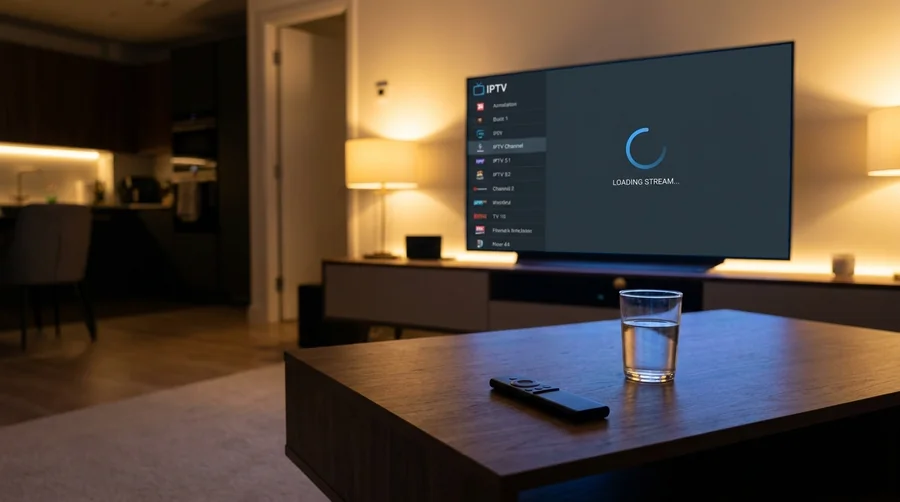
1. Buffering and Freezing
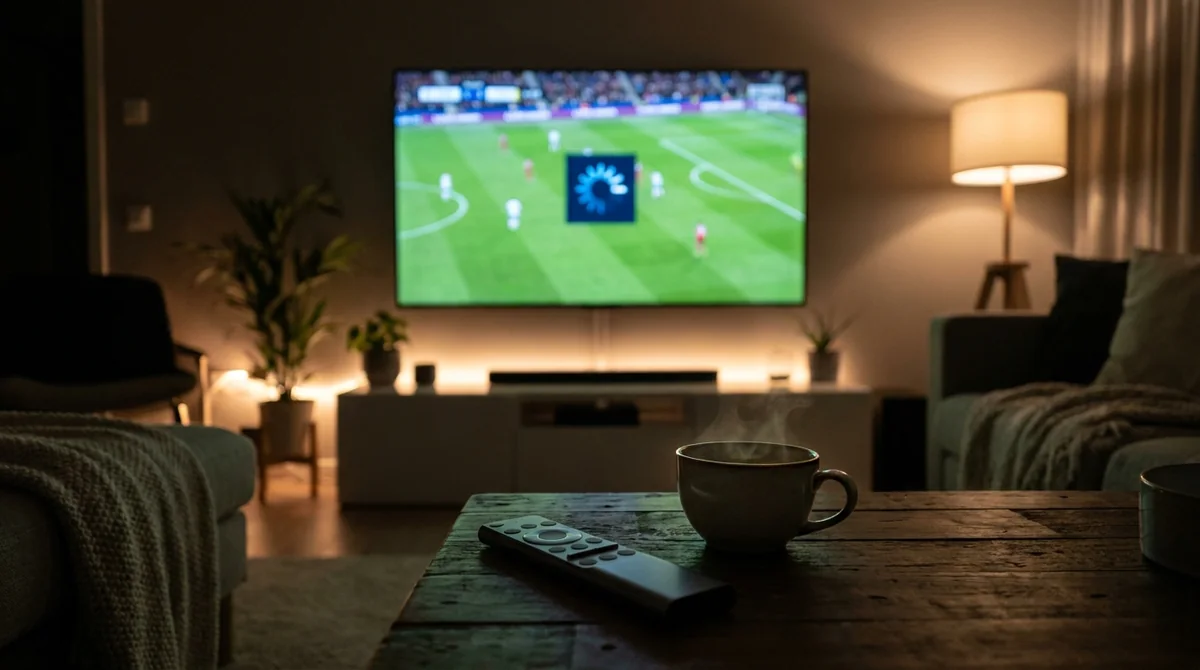
Symptoms: Stream plays for a few seconds then pauses with a loading spinner; video freezes mid-scene; constant stop-and-start playback.
Most common cause: Insufficient or unstable internet speed — your connection cannot sustain the stream's bitrate.
Buffering accounts for the largest share of IPTV support requests. Roughly 90% of buffering cases trace back to slow internet, Wi-Fi interference, or ISP throttling rather than your IPTV app or provider (EuromaxTV, 2026).
| Fix | Action | Time |
|---|---|---|
| Test internet speed | Run fast.com on your streaming device | 1 min |
| Switch to Ethernet | Plug a wired connection into your device or use USB adapter | 5 min |
| Switch to 5 GHz Wi-Fi | Connect to router's 5 GHz network instead of 2.4 GHz | 2 min |
| Increase buffer size | Player Settings → Buffer Size → Large or 15–20 seconds | 2 min |
| Clear app cache | Device Settings → Apps → your IPTV app → Clear Cache | 2 min |
| Lower stream quality | Switch from 4K to 1080p or 720p in player settings | 1 min |
2. Black Screen (No Video)
Symptoms: Channel appears to load (no error message) but the screen is completely black; audio may or may not play.
Most common cause: A codec mismatch between the stream format and your device's video decoder.
IPTV providers use various video codecs — H.264 (AVC), H.265 (HEVC), and increasingly AV1. When your player's decoder cannot handle the stream's codec, you get a black screen (OTTV, 2026).
Actionable Fixes:
- Switch the video decoder: Go to Settings → Player → toggle between Hardware (HW) and Software (SW) decoding. If on Hardware, try HW+.
- Change the video player engine: In IPTV Smarters, switch between Built-in, ExoPlayer, and VLC. In TiviMate, try alternative decoders under Playback.
- Lower device display resolution: On Firestick, go to Settings → Display & Sounds → Display → set to 1080p.
- Perform a full power cycle: Unplug the TV box from wall power for 30 seconds.
3. No Sound or Audio Out of Sync
Symptoms: Video plays normally but no audio; or audio plays but is delayed by 1–5 seconds relative to the video.
Most common cause: The channel broadcasts in AC3 (Dolby Digital) or EAC3, and your device cannot decode that format.
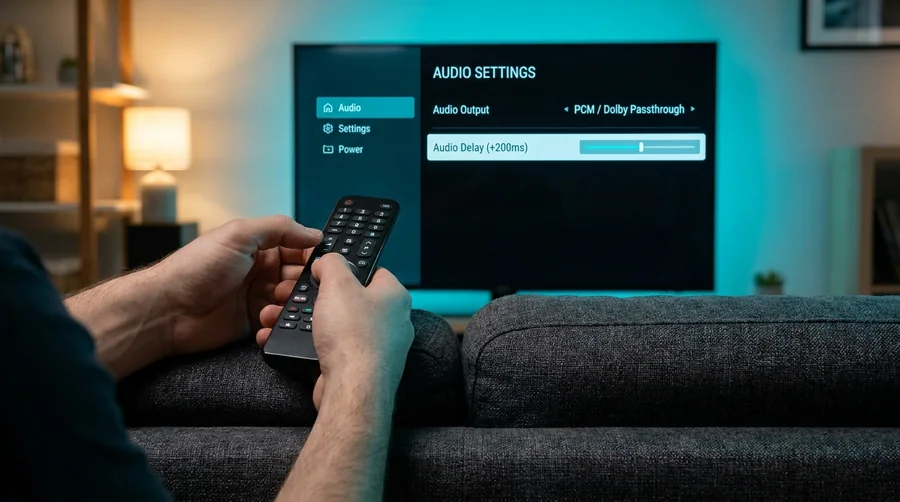
Fixes for No Sound:
- Switch the audio decoder between Hardware and Software in player settings.
- Change audio output on device/TV: On Firestick, go to Settings → Display & Sounds → Audio → set to PCM instead of Dolby/Passthrough.
- Check the audio track: Some channels have multiple language tracks. Switch to Track 2.
Fixes for Audio Out of Sync:
- Open your player's audio delay setting and adjust by +200ms to +500ms increments.
- Enable Audio Time Correction in player settings.
5. EPG Not Loading
Symptoms: The Electronic Program Guide shows "No EPG Found," displays blank entries, or fails to load program info.
Most common cause: A stale EPG cache or incorrect XMLTV URL in player settings (Open Tivi, 2026).
- In TiviMate: Settings → Playlists → tap playlist → EPG Sources → Clear EPG Cache → tap Update EPG.
- In IPTV Smarters: Settings → EPG Settings → Force Refresh EPG.
- Verify your device's date and timezone are set to automatic.
6. Channels Not Loading (Infinite Spinner)
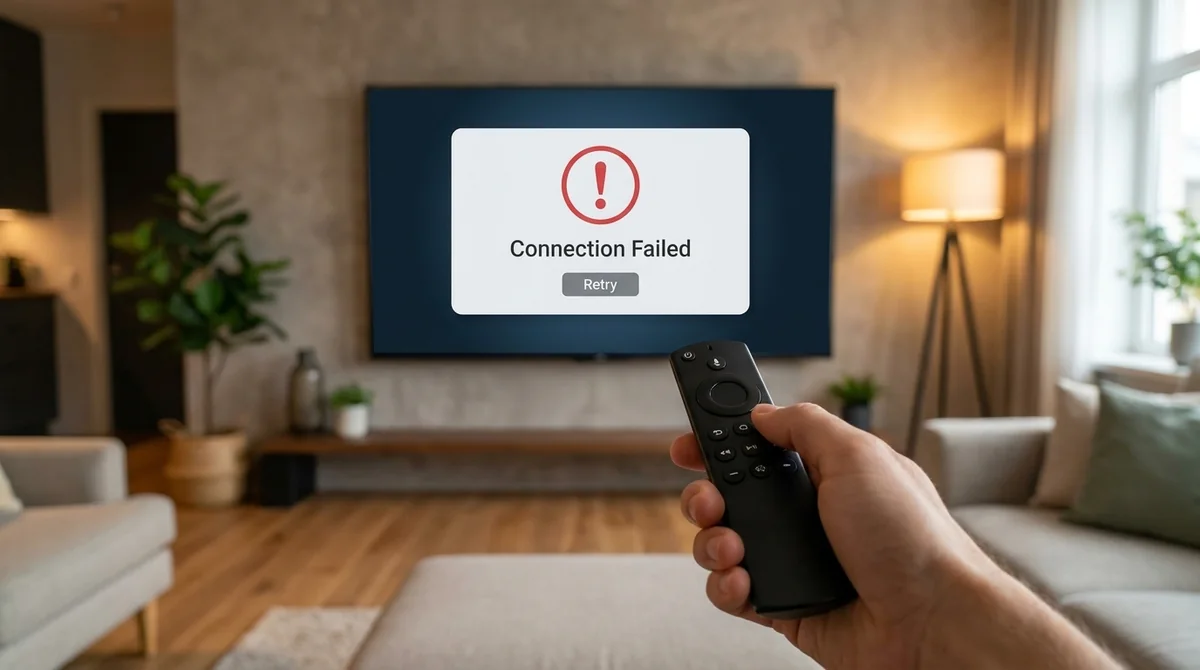
Symptoms: Channel list appears, you select a channel, but it never starts playing — just a loading spinner.
- Test other channels: If other categories work, that specific stream is down on the provider's server.
- Change DNS to Google (
8.8.8.8) or Cloudflare (1.1.1.1). - Temporarily disable your VPN or test on another device (smartphone or tablet).
7. App Keeps Crashing
Symptoms: IPTV app closes itself immediately on launch, crashes during playback, or freezes.
Most common cause: Low internal storage (under 500 MB free) or RAM exhaustion (Amazon Help, 2026).
8. Wrong Program Times in EPG
Symptoms: EPG loads correctly but all program times are shifted by 1–12 hours.
- On Firestick: Settings → Device Options → Date & Time → set Automatic Time Zone to On.
- In TiviMate: Settings → EPG → Time Offset → adjust by ±1 hour until shows align (TVimax, 2026).
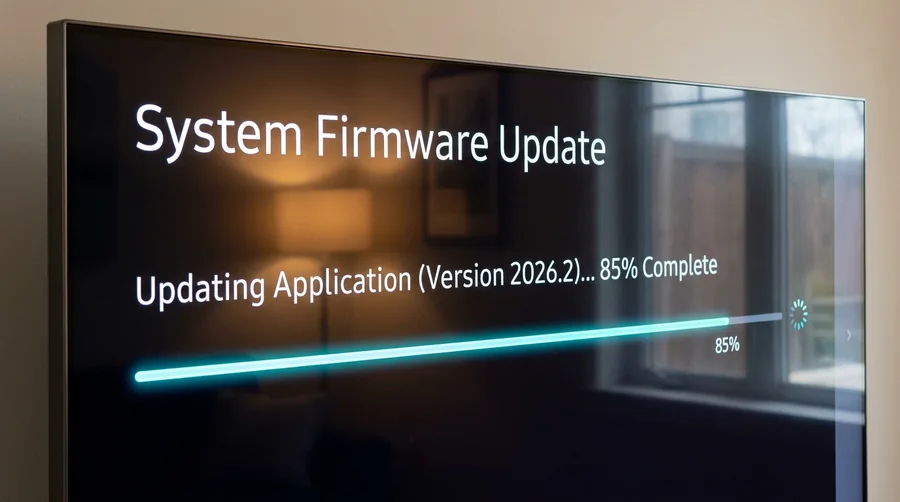
9. IPTV Stopped Working After Update
Symptoms: Everything worked before a firmware or app update, and now streams fail or app crashes.
- Clear app cache and data, then re-enter credentials fresh.
- Check display resolution settings (ensure it didn't reset to an unsupported 4K HDR mode).
- Try an alternative IPTV player (like TiviMate or XCIPTV) as a temporary workaround.
10. ISP Blocking or Throttling IPTV
Symptoms: IPTV buffers heavily during peak hours (7–11 PM) but works perfectly off-peak.
Fix: Connect through a high-speed VPN with the WireGuard protocol or obfuscated servers. This hides IPTV packet signatures from your ISP's Deep Packet Inspection filters (Haproniq, 2026).
Universal Troubleshooting Checklist
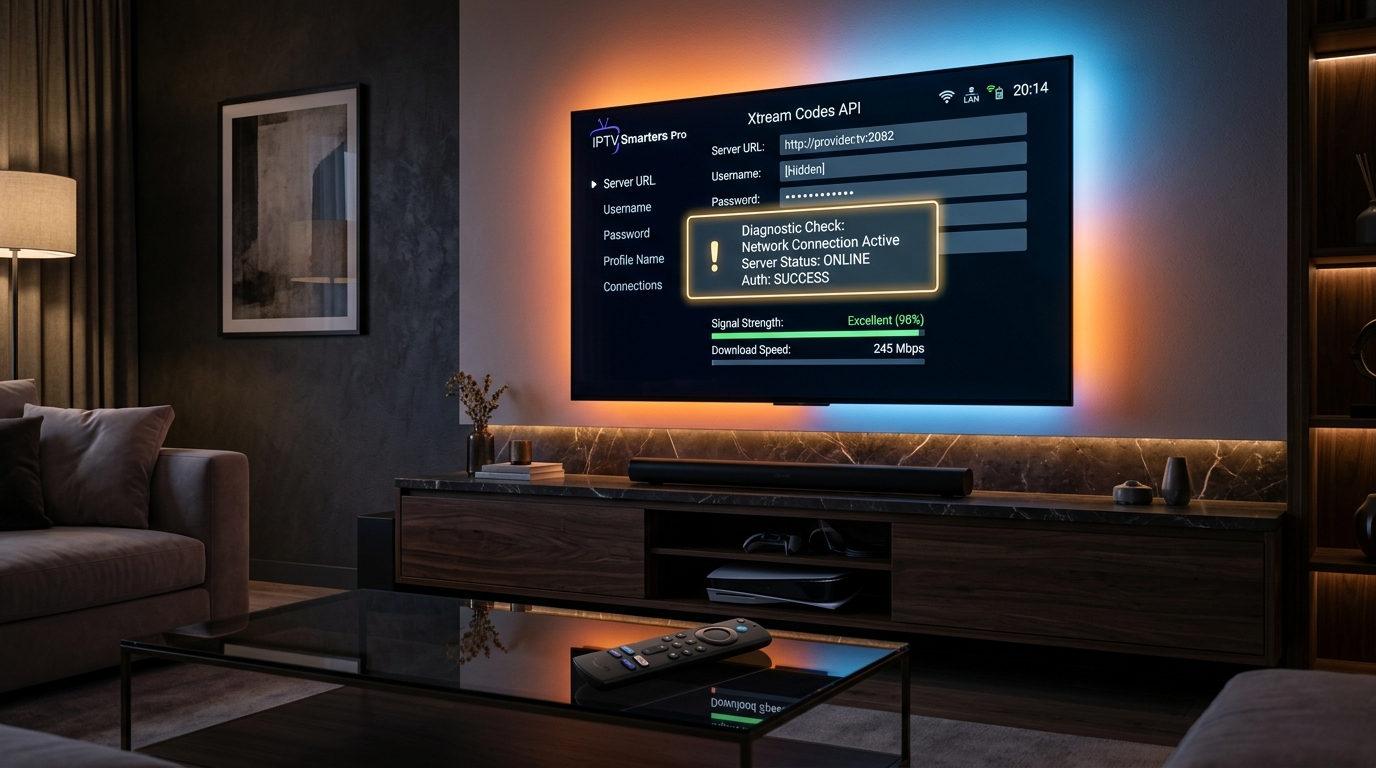
Before you contact your IPTV provider, work through this 5-step diagnostic:
Frequently Asked Questions (FAQ)
Why is my IPTV not working on only one device?
If the same credentials work on a different device, the issue is specific to the first device — not your account or provider. The most common device-specific causes are low storage (under 500 MB free), outdated app version, corrupted cache, or an overheating device.
Can my internet be fast enough but IPTV still buffers?
Yes. Speed tests measure raw bandwidth, but IPTV also requires low latency (under 40ms ping) and minimal packet loss (under 1%). If your speed test shows 100 Mbps but your ping is 200ms or your Wi-Fi has constant micro-interruptions, IPTV will still buffer. Switching to Ethernet is the most reliable fix.
How do I know if the problem is my provider or my setup?
Test at different times of day. If IPTV works fine at 3 AM but fails at 9 PM, the cause is either ISP throttling (use a VPN to test) or provider server overload. If it fails consistently regardless of time, the problem is local. Testing on a second device with the same credentials narrows it further.
Should I reinstall my IPTV app to fix problems?
Reinstalling should be a last resort, not a first step. Always clear the cache first — it fixes the same problems without erasing your settings and login.
Why do some channels work but others do not?
Individual channels going down while others play fine is almost always a server-side issue. Try the channel at a different time or report it to your provider via our support hub.
Looking for a Flexible IPTV Service?
Upgrade to Honey Bee IPTV. Compare current content categories, EPG support, compatible devices, and setup assistance before choosing a plan.
Get Started with Honey Bee IPTV