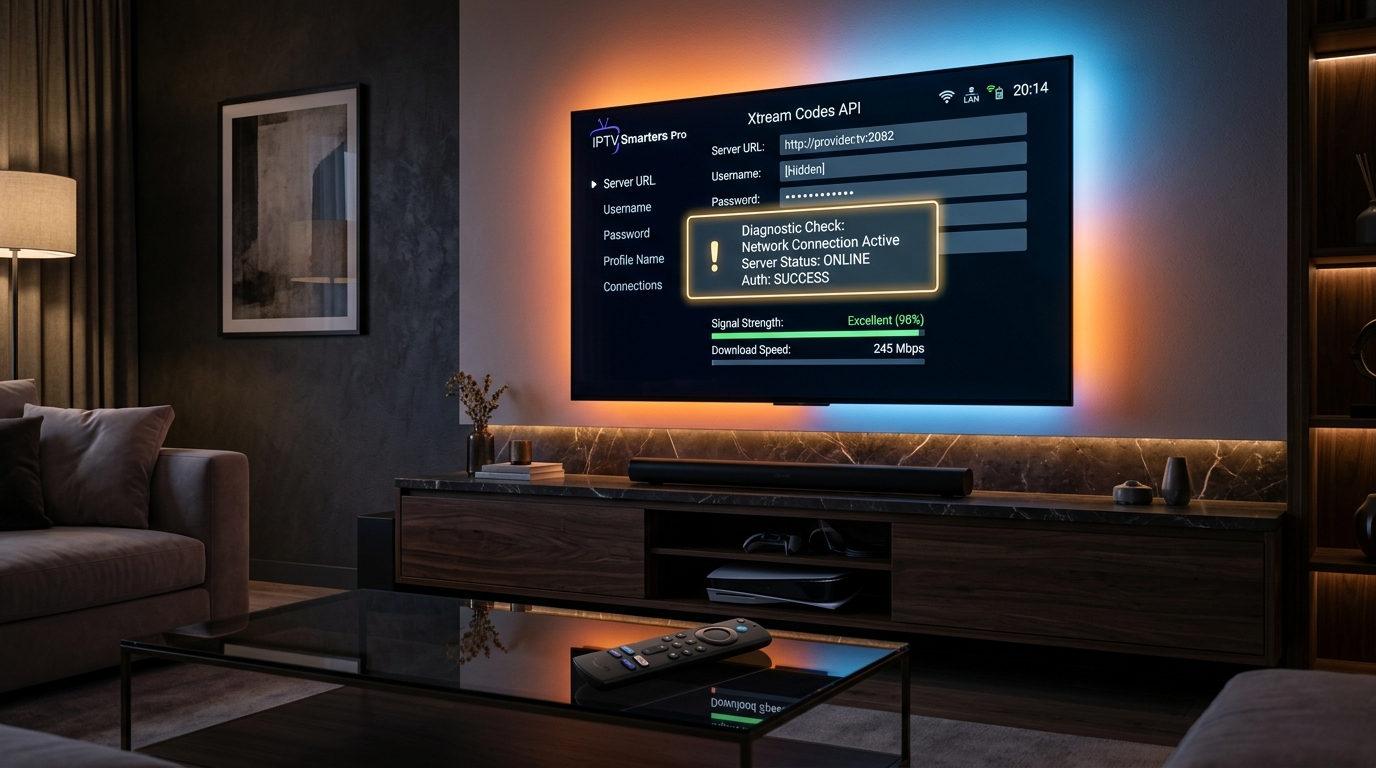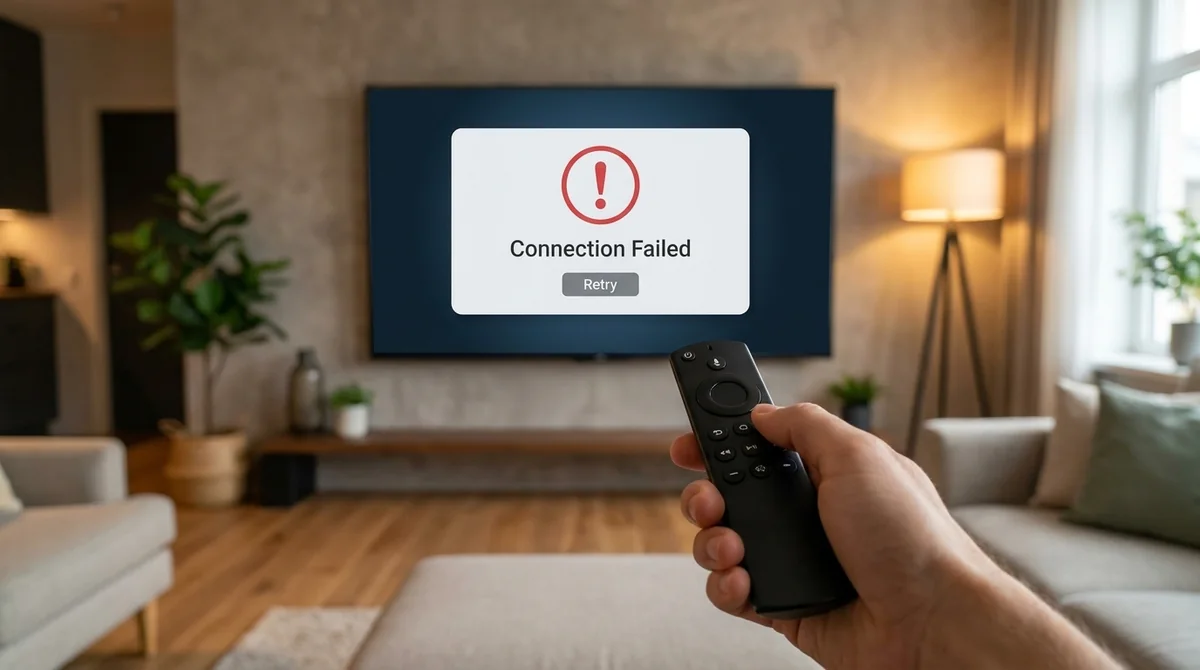

Your IPTV stream loads, plays for a few seconds, then freezes — or loops through an endless buffering spinner. This is the single most common complaint among IPTV users, and roughly 90% of the time the cause is on your network, not your IPTV provider or player app (EuromaxTV, 2026).
The global IPTV market reached USD 105.6 billion in 2025 (IMARC Group, 2025), and with millions of concurrent streams worldwide, even small network issues produce noticeable quality drops. IPTV streams are far more sensitive to connection instability than Netflix or YouTube because they deliver live content with minimal server-side buffering — a 1–2% packet loss rate causes visible stuttering, and ping above 150ms produces a consistently poor experience.
This guide walks through every fix in order of effectiveness, from the quickest wins (checking your speed, switching to Ethernet) to advanced solutions (ISP throttle detection, buffer size tuning, DNS changes). Each step includes device-specific instructions for Firestick, Android TV, and Smart TV.
💡 Key Takeaways
- IPTV buffering is almost always a network problem, not a provider or app problem — fixing your connection fixes your stream.
- Switching from Wi-Fi to a wired Ethernet connection resolves buffering in roughly 40% of cases.
- You need at least 10–15 Mbps for HD streaming, 25–50 Mbps for 4K, and under 40ms ping for stable playback.
- ISP throttling is a hidden cause — if IPTV buffers at 9 PM but plays smoothly at 3 AM, your ISP is likely slowing your traffic during peak hours.
- Clearing your IPTV app cache monthly and restarting your device weekly prevents gradual performance decay.
Why Does IPTV Buffer and Freeze?
Buffering happens when your IPTV player cannot download video data fast enough to play it continuously. The player pre-loads a small chunk of video into memory (the "buffer"), and when incoming data falls behind the playback speed, the stream pauses while the buffer refills.
Freezing is the more severe version — the stream stops entirely, often requiring you to restart the channel or the app.
| Cause | Frequency | What Happens |
|---|---|---|
| Slow or unstable internet | Very common | Bandwidth cannot sustain the stream bitrate |
| Wi-Fi interference | Very common | Micro-interruptions from walls, other devices, congestion |
| ISP throttling | Common | ISP detects IPTV traffic and deliberately slows it |
| IPTV server overload | Common | Provider's server is at capacity during peak hours |
| Outdated app or device cache | Moderate | Corrupted data causes playback glitches |
| Small buffer size setting | Moderate | App does not pre-load enough video to absorb dips |
| DNS resolution delays | Less common | Slow DNS adds latency to every server request |
| Underpowered device | Less common | Old hardware cannot decode the stream fast enough |

Before You Begin
Have these ready before troubleshooting:
- A device to run speed tests (phone, laptop, or the streaming device itself)
- Access to your router's admin page (typically
192.168.1.1or192.168.0.1) - Your IPTV app's settings menu open and ready
- Estimated Time: 10–20 minutes | Difficulty: Beginner-friendly
Step 1: Test Your Internet Speed
IPTV has strict minimum speed requirements — unlike YouTube or Netflix, which adapt quality on the fly, many IPTV streams are fixed-bitrate. If your connection cannot sustain the bitrate, the stream buffers.
- Run a speed test on the device you stream from — not on your phone in another room. Use fast.com or speedtest.net directly on your Firestick, Smart TV, or Android box.
- Check your download speed against the minimums above. For a household with two 4K TVs and several smartphones, plan for at least 200–300 Mbps total (StreamVexa, 2026).
- Check your ping — it should be under 40ms. Ping above 80ms presents a risk of buffering; above 150ms is consistently bad.
- Run the test at the time you normally watch — speeds drop during peak hours (6–11 PM).
Step 2: Switch From Wi-Fi to Ethernet
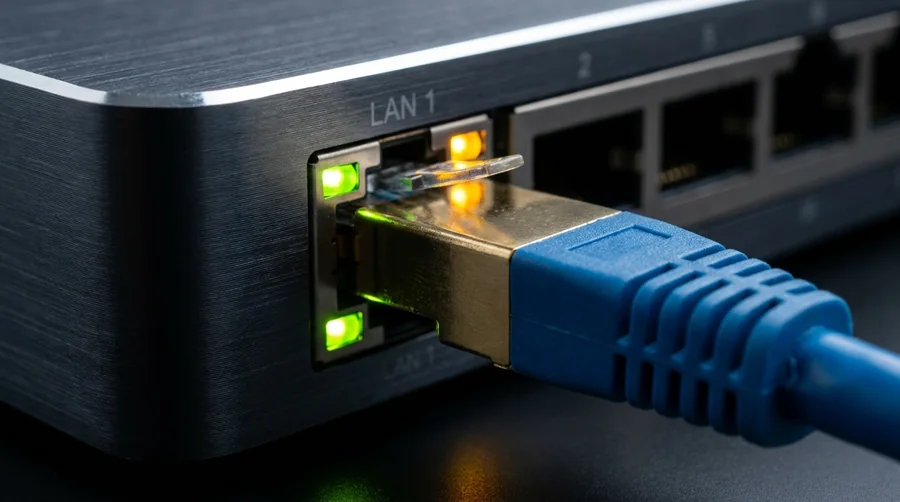
Wi-Fi is the number one culprit behind IPTV buffering. Interference from neighboring networks, microwaves, baby monitors, Bluetooth devices, and walls causes micro-interruptions that break the continuous data flow IPTV requires. A wired Ethernet connection eliminates all of this interference and fixes buffering in roughly 40% of cases (Fire Stick Tricks, 2026).
For Firestick / Fire TV
- Buy an Ethernet adapter — Amazon's official adapter (max 100 Mbps) costs around $15. Third-party gigabit adapters from UGREEN offer speeds up to 1 Gbps (TROYPoint, 2026).
- Connect the adapter to the Firestick's Micro-USB or USB-C port.
- Plug an Ethernet cable from the adapter to your router.
- The Firestick automatically switches to the wired connection.
Step 3: Optimize Your Wi-Fi Connection
If wired is not an option, these Wi-Fi optimizations can significantly reduce buffering:
- Switch to 5 GHz: The 5 GHz band delivers faster speeds with less interference than 2.4 GHz (Yahoo Tech, 2026). Connect to the
-5Gnetwork SSID. - Improve Router Placement: Place the router in a central, elevated position away from microwaves and thick walls.
- Reduce Wi-Fi Congestion: Disconnect idle devices and pause heavy downloads while watching live sports.
Step 4: Detect and Fix ISP Throttling
ISP throttling is a hidden cause of IPTV buffering that no amount of Wi-Fi optimization will fix. ISPs use Deep Packet Inspection (DPI) to identify the type of traffic on your connection. When they detect IPTV streaming, they can deliberately slow it down (Haproniq, 2026).
A VPN encrypts your traffic so your ISP cannot identify IPTV data streams. Use the WireGuard protocol for fastest throughput and lowest latency overhead (Le VPN, 2026).
Step 5: Change Your DNS Settings
Slow DNS resolution adds latency to every request your IPTV player makes. Switch your device or router to:
- Google Public DNS: Primary:
8.8.8.8| Secondary:8.8.4.4 - Cloudflare DNS: Primary:
1.1.1.1| Secondary:1.0.0.1
Step 6: Clear Your IPTV App Cache
IPTV apps store EPG data, stream history, and session tokens locally. Over weeks of use, this cache grows large and can become corrupted, causing buffering and freezing (or Smarters authorization errors) (IPTV Canada, 2026).
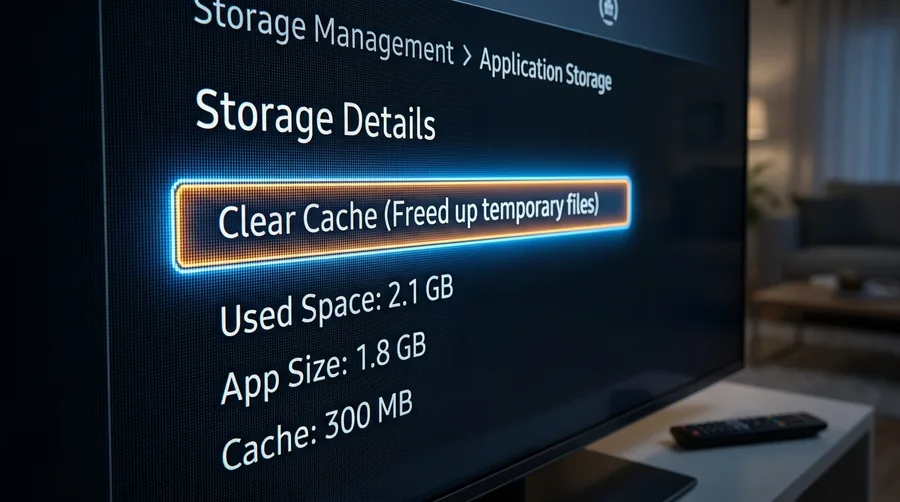
- On Firestick: Go to Settings → Applications → Manage Installed Applications.
- Select your IPTV app (TiviMate, IPTV Smarters, XCIPTV).
- Select Clear Cache (do not select Clear Data).
- Relaunch the application.
Step 7: Increase Your IPTV Player Buffer Size
A larger buffer pre-loads more video data ahead of time, creating a cushion against brief connection dips.
Steps 8 to 10: Quality, Restarts & Provider Status
Streaming 4K IPTV consumes ~7 GB/hour (StreamVexa, 2026). If bandwidth is tight during peak hours, switching output from 4K to 1080p or 720p instantly cuts data demand by 50%.
Unplug your router and streaming device from power for 30 seconds. This flushes volatile memory caches and resets stale network routing tables.
If you tested speed, wired Ethernet, cleared cache, and buffering still occurs on multiple devices, your provider’s load balancer may be overloaded. contact our support desk or check whether the provider is experiencing capacity issues or check our master IPTV troubleshooting checklist.
Frequently Asked Questions (FAQ)
Why does my IPTV buffer only at night?
Peak-hour buffering (typically 6–11 PM) has two possible causes. First, your ISP may be throttling your traffic during high-demand periods — a VPN test confirms this (Step 4). Second, your IPTV provider's servers may be at capacity with too many concurrent viewers.
Is Ethernet really that much better than Wi-Fi for IPTV?
Yes. A wired Ethernet connection eliminates Wi-Fi interference, provides consistent speeds, and reduces latency. It fixes buffering in roughly 40% of cases and is the single most impactful hardware change you can make (TROYPoint, 2026).
How much internet speed do I actually need for IPTV?
For HD (720p/1080p): 10–25 Mbps. For 4K: 25–50 Mbps. Per additional stream, add another 25 Mbps for 4K or 5 Mbps for HD. Ping should be under 40ms for stable playback (StreamVexa, 2026).
Will a VPN fix IPTV buffering?
Only if the cause is ISP throttling. A VPN encrypts your traffic so your ISP cannot identify it as IPTV and selectively slow it down. However, a VPN adds some overhead — if your connection is already slow, a VPN will make it slightly slower.
How often should I clear my IPTV app cache?
Once a month is sufficient for most users. Clear the cache only (not app data, which erases your login). Also restart your streaming device at least once a week.
Tired of Buffering & Freezing During Big Games?
Honey Bee IPTV supports HD, FHD, and 4K sources where available. Actual quality and playback depend on the source, device, player, and network.
Compare Streaming Plans