Executive Summary: The 60-Second Quick Fix
If your IPTV Smarters Pro suddenly displays "Failed to Authorize", over 85% of cases are caused by three specific syntax mistakes: an accidental trailing space added by your remote's virtual keyboard, an invalid protocol prefix (typing https:// instead of http://), or keeping extra path suffixes like /c/ or /get.php in the Server URL field.
Immediate 3-Step Triage:
1) Remove the trailing slash / from your server URL.
2) Re-type your password with case-sensitivity verified.
3) If you are on home Wi-Fi, temporarily disconnect your router or toggle a mobile hotspot to verify if your ISP is intercepting the connection.
What Actually Causes "Failed to Authorize" in IPTV Smarters?
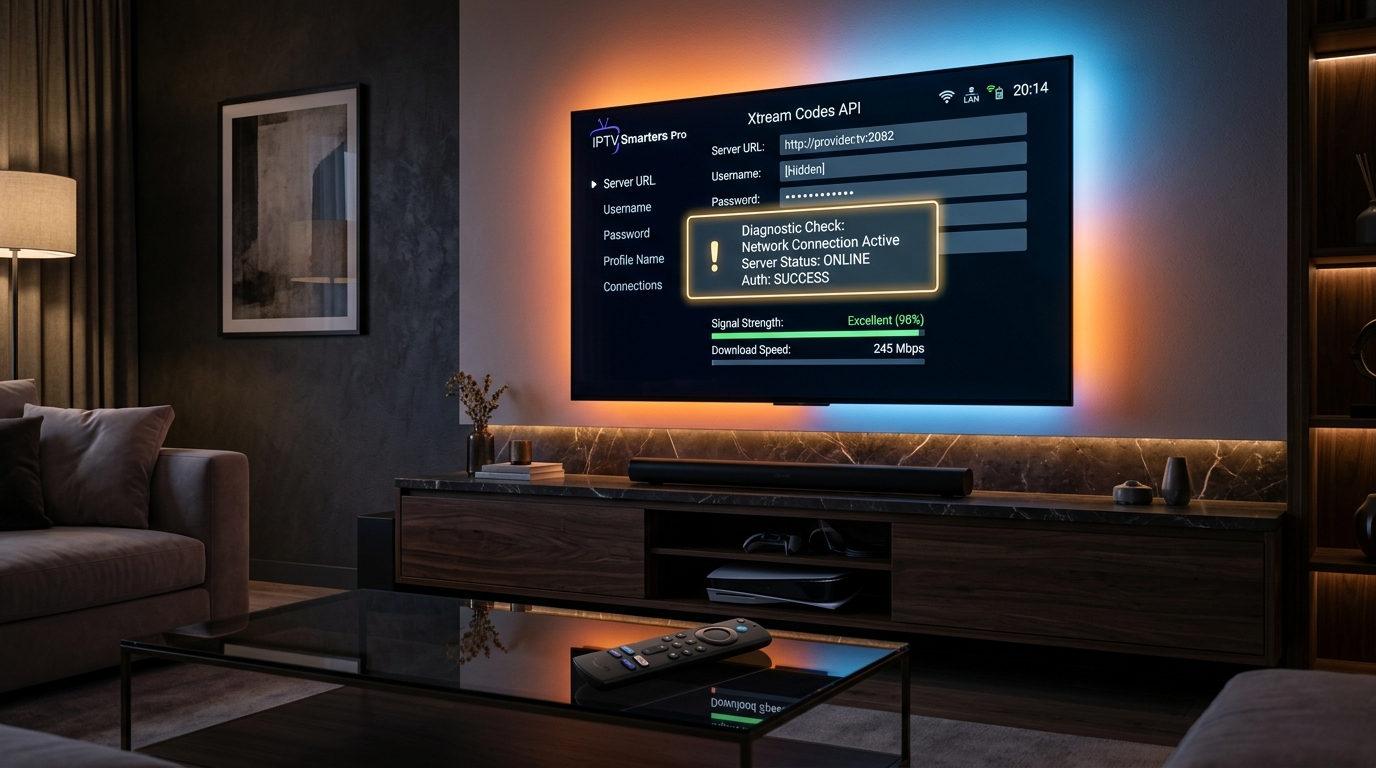
To fix this error permanently, you must understand how IPTV Smarters communicates with your IPTV provider. When you click "Add User" or launch the app, IPTV Smarters sends an automated HTTP handshake request to your provider's backend using the Xtream Codes API protocol:
GET {Server_URL}/player_api.php?username={Username}&password={Password}
Your provider's server examines this request and sends back a JSON response payload containing your account status (Active, Banned, or Expired), your maximum simultaneous connections, and your server expiration timestamp.
Here is the critical flaw in IPTV Smarters Pro: the app throws the exact same "Failed to Authorize" error dialog regardless of whether the failure was an incorrect password, an expired subscription, an ISP DNS block, or an unreachable server node. It is a generic catch-all message. Below are the 6 real engineering triggers:
- 1. Remote Keyboard Autocorrect Spacing: Virtual keyboards on Firestick and Samsung TV automatically append a hidden trailing space after entering dots or special characters in the URL or username.
- 2. Incompatible Protocol & Port: Entering
https://on a server that only operates on unencryptedhttp://:8080, or missing the port number entirely. - 3. Account Lapsed or Reached Connection Limit: Your 30-day or 12-month subscription expired, or a family member is streaming on another television using a 1-connection plan.
- 4. ISP DNS Tampering & Deep Packet Inspection (DPI): Major Internet Service Providers (Comcast, Spectrum, BT, Virgin Media) redirect requests to unauthorized IPTV server domains to an internal DNS sinkhole (returning NXDOMAIN).
- 5. Corrupted Smarters SQLite Cache Database: Old EPG cache data or expired token cookies stuck in the app's internal database causing handshake timeouts.
- 6. IPTV Provider Server Migration or DDoS Outage: The provider changed their primary server IP/domain without sending you updated credentials, or the server crashed.
2026 IPTV Smarters Diagnostic Triage Matrix
Use this clinical decision matrix to pinpoint your exact scenario in under 30 seconds before diving into detailed device steps:
| Observed Symptom | Probable Root Cause | Likelihood | Fastest Fix | Fix Time |
|---|---|---|---|---|
| Instant Error (Under 1s) | Typo in Username / Password, or trailing space in URL | Very High | Check for hidden trailing space & re-enter password | 30 Seconds |
| Loading Spinner for 15s+, then Error | ISP DNS blocking or Server IP unreachable / offline | High | Switch device DNS to Cloudflare 1.1.1.1 or toggle VPN | 2 Minutes |
| Worked yesterday, stopped today | Account subscription expired or simultaneous connection clash | High | Verify account expiration date with provider / close other apps | 1 Minute |
| Fails on Home Wi-Fi, Works on Mobile Hotspot | ISP firewall / Parental controls blocking Xtream API | Definitive | Disable ISP WebShield / Change DNS on router or device | 3 Minutes |
| Error occurs immediately after app update | Corrupted SQLite app cache or obsolete Smarters APK build | Medium | Clear App Cache & Data in OS Settings | 90 Seconds |
Method 1 Audit Your Xtream Codes Server URL Format
The single most frequent mistake cord-cutters make is entering an M3U file path or a browser link into the "Server URL" box of IPTV Smarters. IPTV Smarters Pro requires the bare base domain and port only.
Review these exact formatting rules:
- No Trailing Slash: Ensure there is NO slash
/at the very end of your URL. Some Smarters versions concatenate/player_api.php, resulting in//player_api.phpwhich triggers a 404 error. - Ensure Protocol Prefix: Always include
http://orhttps://. Without it, Smarters cannot resolve the host address. - Inspect the Port: Most IPTV providers specify a port number such as
:8080,:80,:2086, or:2095. If your activation email included a port number, you MUST append it after the colon.
Method 2 Verify Account Status & Active Device Limits
When an IPTV subscription reaches its expiration date or hits its maximum concurrent device limit, the Xtream Codes server returns an HTTP 401 Unauthorized or 403 Forbidden code. IPTV Smarters translates both into "Failed to Authorize".
The "Ghost Connection" Trap Explained:
If you ordered a 1-device connection plan and previously streamed IPTV Smarters on your bedroom Firestick or phone, the server's session token can stay active in memory for 10 to 15 minutes after you turn off the TV. When you attempt to log in on your main living room television, the server rejects the new session as an illegal 2nd connection.
How to Resolve:
- Exit the IPTV Smarters app on all other streaming devices (use the app's exit button, don't just put the TV to sleep).
- Check your provider's customer billing dashboard to verify that your subscription end date has not passed.
- If your provider has a WhatsApp support channel (like Honey Bee IPTV's 24/7 desk), message them your username to request an instant connection session reset.
Method 3 Test Server Protocol (HTTP vs HTTPS & Port)
Many cord-cutters assume modern security standards require https://. However, thousands of IPTV servers run custom Nginx reverse proxies with self-signed SSL certificates or no SSL binding at all.
When you enter https://yourserver.com:8080 on an Android device or Fire TV running Android 11+, the operating system's strict security layer rejects the untrusted SSL certificate handshake before the server can even read your credentials. The result? An instant "Failed to Authorize".
If your server URL starts with https://, switch it to http:// and attempt login. Conversely, if your ISP has blocked plain HTTP traffic on port 8080, try switching from http:// to https:// on port :2086 or :2095.
Method 4 Purge App Cache & Corrupted Session Data
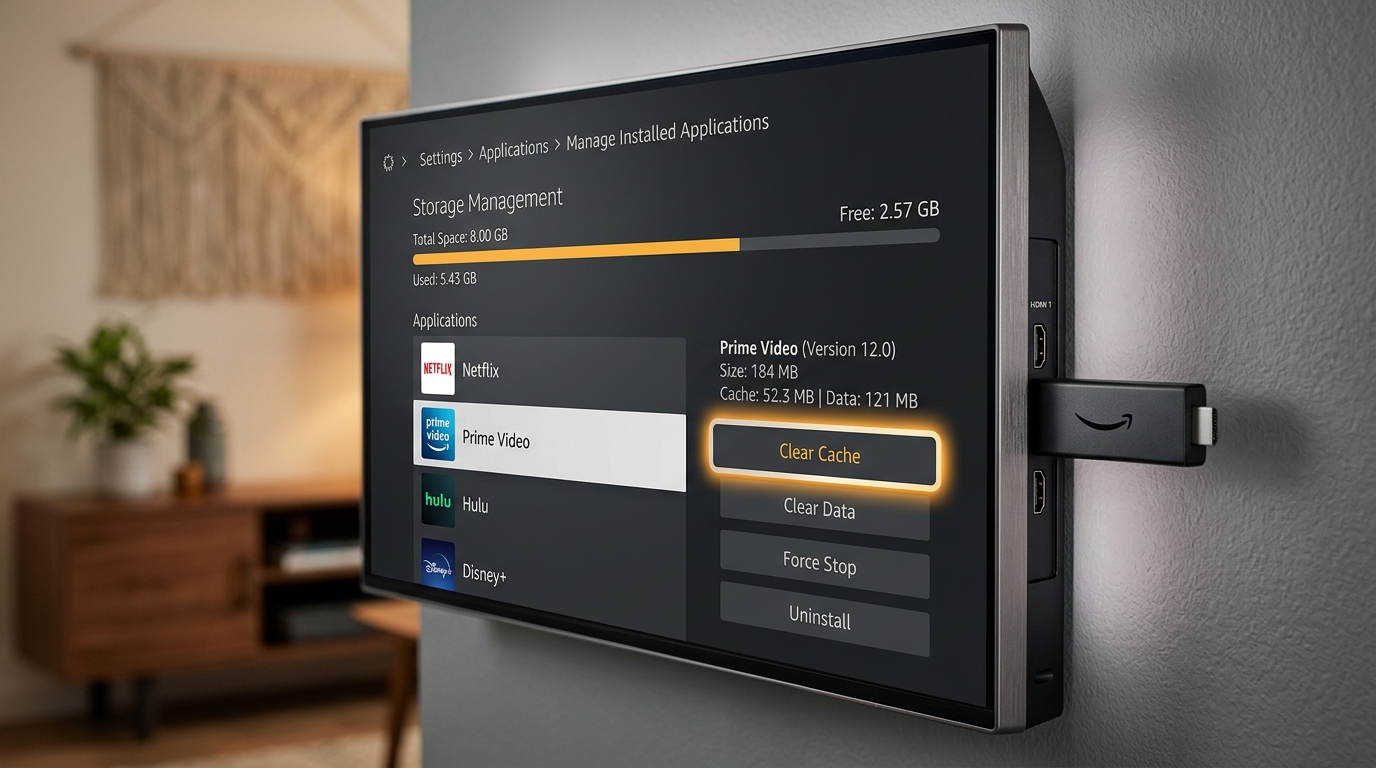
IPTV Smarters Pro maintains local SQLite databases for channel categories, Electronic Program Guides (EPG), and previous login tokens. If a token becomes invalid or the app crashed mid-handshake, it will loop into authorization errors. Clearing the cache restores clean network sockets without harming your hardware.
🔥 Amazon Firestick / Fire TV
- From the Fire TV Home screen, open Settings (gear icon).
- Select Applications > Manage Installed Applications.
- Scroll down and select IPTV Smarters Pro.
- Click Force Stop, then click Clear Cache.
- If the error persists, select Clear Data (you will need to re-type login details).
🤖 Android TV & Google TV
- Open Settings > Apps > See all apps.
- Locate and select IPTV Smarters Pro.
- Choose Force Stop.
- Scroll down and select Clear Cache.
- Restart your Android TV box or Chromecast.
📺 Samsung & LG Smart TV
- Smart TVs do not offer an OS-level cache button for third-party apps.
- Perform a Cold Reboot: Unplug your television from the wall power outlet for 60 seconds (do not just use the remote power button).
- Hold the physical TV power button for 10 seconds to drain capacitors, then plug it back in.
- If needed, delete IPTV Smarters from the App Store and reinstall it fresh.
🍎 Apple iOS & Apple TV
- Swipe up from the bottom of your screen to open the App Switcher.
- Swipe up on the Smarters Player Lite card to force close it.
- In iOS Settings > General > iPhone Storage > Smarters Lite, select Offload App, then tap Reinstall App.
Method 5 Bypass ISP DNS Blocking & Deep Packet Inspection
In the United States, Canada, and the United Kingdom, Internet Service Providers use automated DNS filtering to intercept IPTV server domain names during live sports broadcasts. If your router uses default ISP DNS servers (Comcast, AT&T, Spectrum, BT, Virgin, Sky), your device asks "What is the IP of line.server.xyz?" and the ISP answers "0.0.0.0 (Does Not Exist)". IPTV Smarters fails to authorize immediately.
Switching your DNS to independent, encrypted high-speed resolvers completely solves this barrier:
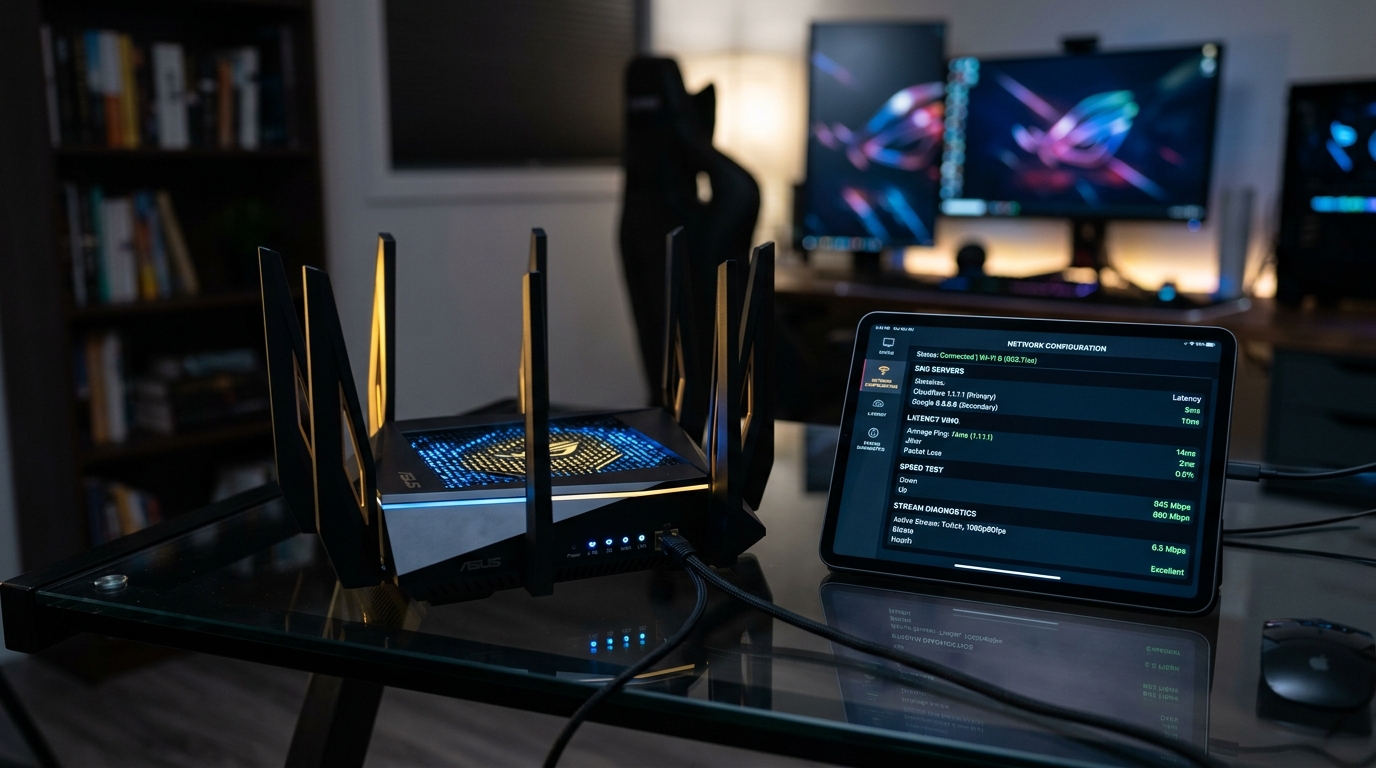
| DNS Provider | Primary DNS | Secondary DNS | Key Advantage |
|---|---|---|---|
| Cloudflare (Recommended) | 1.1.1.1 |
1.0.0.1 |
Lowest latency, zero DNS filtering, 14ms response time |
| Google Public DNS | 8.8.8.8 |
8.8.4.4 |
Global redundancy, 100% uptime, zero censorship |
| Quad9 Security DNS | 9.9.9.9 |
149.112.112.112 |
Blocks malicious domains, high privacy protection |
How to change DNS on Amazon Firestick in 60 seconds:
Navigate to Settings > My Fire TV > About > Network and write down your IP and Gateway. Then go to Network > Select your Wi-Fi > Click the Menu button (3 lines) to Forget Network > Reconnect > Choose Advanced Settings > Enter Static IP > Enter Gateway > Set DNS 1 to 1.1.1.1 and DNS 2 to 8.8.8.8.
Method 6 Reconfigure VPN Routing & Protocols
A Virtual Private Network (VPN) can be either your best solution or the exact cause of "Failed to Authorize":
- When VPN Solves the Error: If your ISP is actively throttling or blocking your IPTV provider's IP address, turning on a premium VPN (Surfshark, ExpressVPN, NordVPN) encrypts all traffic inside a WireGuard tunnel, rendering the ISP blind and allowing the handshake to succeed.
- When VPN Causes the Error: Many budget or free VPNs share overcrowded IP addresses that IPTV providers automatically blacklist to protect their servers from scraping and DDoS attacks. Furthermore, some IPTV providers lock your account to your registration country's geolocation.
⚡ The 2-Step VPN Test:
- If VPN is currently OFF: Turn it ON, connect to a server in your own country or Switzerland/Iceland, and retry logging into IPTV Smarters.
- If VPN is currently ON: Turn it completely OFF, or change the VPN protocol from OpenVPN to WireGuard, switch server cities, and test again.
Method 7 Run the 10-Second Web Browser Test
Before spending hours troubleshooting your Firestick or Smart TV, run this definitive isolation test on your smartphone or PC browser:
http://{YOUR_SERVER_URL}:{PORT}/player_api.php?username={YOUR_USER}&password={YOUR_PASS}
Paste that exact link into Google Chrome, Safari, or Microsoft Edge.
- Result A: You see a JSON response stating
"status": "Active": Your credentials and server are 100% operational! The issue is isolated to your Firestick/TV app cache, local DNS, or remote typing error. - Result B: You see
"status": "Disabled"or"status": "Expired": Your account is inactive. Only your IPTV provider can restore it. - Result C: Browser shows "This site can't be reached" (ERR_CONNECTION_TIMED_OUT): The server IP is down, domain expired, or your home internet is actively dropping packets to that host.
Method 8 Reinstall Official IPTV Smarters Pro (Code 366972)
The web is filled with modified, "cracked", and ad-free IPTV Smarters APK files hosted on untrusted forums. Many of these cracked APKs have outdated user-agent headers or broken API endpoints that are blocked by modern Xtream Codes servers.
Always run the clean, official IPTV Smarters Pro build:
📲 How to Install Clean Official Smarters on Firestick:
- Open the Downloader app on your Amazon Fire TV.
- In the URL field, enter the verified Downloader shortcode:
366972. - Press Go to directly download the official clean IPTV Smarters Pro APK.
- Click Install, then open the app and log in with your credentials.
3 Red Flags: Did Your IPTV Provider Shut Down or Exit Scam?
If you completed all 8 diagnostic methods above and your browser test still returns a connection timeout, you may be the victim of a shut-down IPTV service. Watch for these 3 critical red flags:
🚨 Red Flag 1: The Provider's Website or Telegram Channel Has Vanished
If you visit your seller's website and see an NXDOMAIN error, Cloudflare 522 Host Error, or their Telegram support group is deleted, their backend infrastructure was seized or abandoned.
🚨 Red Flag 2: "Under Maintenance" Lasting More Than 48 Hours
Legitimate premium IPTV services with redundant load-balanced servers take no more than 30 to 60 minutes for emergency maintenance. An outage lasting multiple days is a reliable indicator of an unannounced shutdown.
🚨 Red Flag 3: Unresponsive WhatsApp or Email Support Desk
If your messages to customer support remain unread for over 24 hours while your authorization error persists, your line has likely been terminated on the server level.
Tired of Unreliable Servers & Authorization Errors?
Switch to Honey Bee IPTV. Stream 25,000+ live 4K channels and 100,000+ movies on dedicated, anti-freeze redundant servers with instant WhatsApp credentials delivery and 99.9% uptime.
Explore Honey Bee IPTV Plans & Instant Trial →Best Alternative IPTV Players If Smarters Continues Failing
If IPTV Smarters continues having compatibility issues on your device, you do not need to replace your IPTV subscription. You can simply log in with your same Xtream Codes credentials into any of these top 3 verified alternative players:
| Player App | Best Platforms | UI Quality | Standout Feature |
|---|---|---|---|
| TiviMate IPTV Player | Firestick, Android TV, Google TV | ⭐⭐⭐⭐⭐ (Cable-like) | Multi-screen, flawless EPG, instant channel zapping |
| IBO Player Pro | Samsung Tizen, LG webOS, Fire TV | ⭐⭐⭐⭐½ (Ultra Fast) | Native Smart TV App Store availability, Web playlist portal |
| XCIPTV Player | Fire TV, Android, Mobile Devices | ⭐⭐⭐⭐ (Modern Dark) | Built-in dual ExoPlayer & VLC player engines |
Frequently Asked Questions About IPTV Smarters Authorization
Why does IPTV Smarters say "Failed to Authorize" with correct credentials?
Because the error message is a generic catch-all. Even if your username and password are 100% correct, Smarters will display "Failed to Authorize" if your internet provider is blocking the server's domain via DNS filtering, if your subscription expired on the backend, or if an accidental trailing space was entered into the Server URL field.
Does clearing the cache on IPTV Smarters delete my login information?
No. Selecting "Clear Cache" only removes temporary channel images, logos, and EPG guide data. Your login credentials and playlists remain intact. However, selecting "Clear Data" will wipe all settings and require you to re-enter your username, password, and server URL.
Can I use IPTV Smarters on multiple devices at the same time?
Only if your IPTV subscription plan includes multi-device connections. If you purchased a 1-connection plan and stream on a second device, the server will reject the new handshake with a "Failed to Authorize" pop-up. Check your plan details or upgrade to a multi-connection subscription.
Should I use HTTP or HTTPS for my IPTV server URL?
Always start with http:// unless your provider specifically instructed you to use https://. Most IPTV streaming servers operate over plain HTTP on port 8080. Forcing HTTPS on an uncertified server will cause the SSL handshake to fail, preventing IPTV Smarters from authorizing.
What is the Downloader code to reinstall clean IPTV Smarters Pro on Firestick?
The official verified Downloader shortcode for IPTV Smarters Pro is 366972. Entering this code into the Amazon Downloader app initiates a direct download of the official clean APK build.
Why does IPTV Smarters work on cellular data but fail on home Wi-Fi?
This is definitive proof of ISP-level blocking. Your mobile carrier does not censor the IPTV server IP, while your home internet provider (e.g., Comcast, Spectrum, BT) is actively blocking the Xtream Codes API handshake. Changing your router or device DNS to 1.1.1.1 (Cloudflare) or activating a premium VPN immediately resolves this issue.